Work with EASendMail Service (Email Queuing)
EASendMail Service is a light and fast email delivery service which works with EASendMail
SMTP .Net Component / ANSMTP SMTP Component to enable your application to send mass
emails in background service. Along with its ability to picking recipients from
database in background and sending email in specified datetime, it eases your task
in developing featured email application such as newsletter application. We strongly
recommend you to use EASendMail Service with your ASP.NET/Web Application.
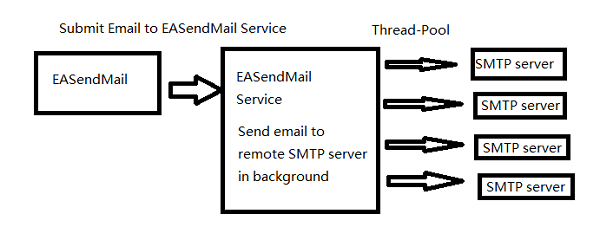
To work with EASendMail Service, please download EASendMail Service and install it on your server. If you
are using web hosting service and you don't have permission to install service on
that server, EASendMail service is not suitable for you.
In most newsletter application, body text usually begins with "Dear [name] ... To
unsubscribe this newsletter, please ... [email address]". To approach this body
text, email application has to send email to every recipient one by one. EASendMail
service provides an advanced technology (variables replacing) to process those emails.
To learn more about the variables in EASendMail service, please click here.
Important Notice: if your web application is hosted by ISP and you don't have the
permission to install EASendMail Service, then please use BatchSendMail method to send bulk emails in asp.net.
Example
[Visual Basic, C#] The following example demonstrates how to send email with EASendMail
SMTP Component. To get the full samples of EASendMail, please refer to Samples section.
[VB - Send Email to Queue]

Imports EASendMail

Public Sub SendMailToQueue(sender As String,
    recipient As String,
    subject As String)

    Try
        Dim oMail As SmtpMail = New SmtpMail("TryIt")
        oMail.From = New MailAddress(sender)
        ' Separate multiple addresses by comma(,)
        oMail.To = New AddressCollection(recipient)

        ' To avoid too many email addresses appear in To header, using the
        ' following code only display the current recipient
        oMail.Headers.ReplaceHeader("To", """{$var_rcptname}"" <{$var_rcptaddr}>")
        oMail.Headers.ReplaceHeader("X-Rcpt-To",
                        oMail.To.ToEncodedString(HeaderEncodingType.EncodingAuto, "utf-8"))

        oMail.Subject = subject
        oMail.TextBody = "Dear {$var_rcptname}, your email address is {$var_rcptaddr}"

        ' If you want EASendMail service to send the email after 10 minutes, use the following code.
        ' you can also cancel the scheduled task in EASendMail Service Manager->Queue Monitor->Scheduled Tasks
        ' oMail.Date = System.DateTime.Now.AddMinutes(10)

        ' Your SMTP server address, if you don't set server,
        ' EASendMail service uses the server setting in EASendMail Service Manager.
        Dim oServer As New SmtpServer("smtp.emailarchitect.net")

        ' User and password for ESMTP authentication
        oServer.User = "test@emailarchitect.net"
        oServer.Password = "testpassword"

        ' If server supports SSL/TLS connection, SSL/TLS is used automatically.
        oServer.ConnectType = SmtpConnectType.ConnectTryTLS

        Dim oSmtp As SmtpClient = New SmtpClient()
        oSmtp.SendMailToQueue(oServer, oMail)

        ' If you want to use SMTP server setting in EASendMail Service Manager, use
        ' oSmtp.SendMailToQueue(Nothing, oMail)
        Console.WriteLine("The message was sent to EASendMail Service successfully!")

    Catch exp As Exception
        Console.WriteLine("Exception: Common: {0}, please make sure you installed EASendMail Service on the server!", exp.Message)
    End Try

End Sub


[C# - Send Email to Queue]

using System;
using System.Collections;
using EASendMail;

public void SendMailToQueue(string sender,
        string recipient,
        string subject)
{
    try
    {
        SmtpMail oMail = new SmtpMail("TryIt");
        oMail.From = sender;
        // Separate multiple addresses by comma(,)
        oMail.To = recipient;

        // To avoid too many email addresses appear in To header,
        // use following code only display the current recipient
        oMail.Headers.ReplaceHeader("To", "\"{$var_rcptname}\" <{$var_rcptaddr}>");
        oMail.Headers.ReplaceHeader("X-Rcpt-To",
            oMail.To.ToEncodedString(HeaderEncodingType.EncodingAuto, "utf-8"));

        oMail.Subject = subject;
        oMail.TextBody = "Dear {$var_rcptname}, your email address is {$var_rcptaddr}";

        // If you want EASendMail service to send the email after 10 minutes, use the following code.
        // you can also cancel the scheduled task in EASendMail Service Manager->Queue Monitor->Scheduled Tasks
        // oMail.Date = DateTime.Now.AddMinutes(10);

        // Your SMTP server address, if you don't set server,
        // EASendMail service uses the server setting in EASendMail Service Manager.
        SmtpServer oServer = new SmtpServer("smtp.emailarchitect.net");

        // User and password for ESMTP authentication
        oServer.User = "test@emailarchitect.net";
        oServer.Password = "test";

        // Most mordern SMTP servers require SSL/TLS connection now.
        // ConnectTryTLS means if server supports SSL/TLS, SSL/TLS will be used automatically.
        oServer.ConnectType = SmtpConnectType.ConnectTryTLS;

        SmtpClient oSmtp = new SmtpClient();
        oSmtp.SendMailToQueue(oServer, oMail);

        // If you want to use SMTP server setting in EASendMail Service Manager, use
        // oSmtp.SendMailToQueue(null, oMail);
        Console.WriteLine("The message was sent to EASendMail Service successfully!");
    }
    catch (Exception exp)
    {
        Console.WriteLine("Exception: {0}, please make sure you installed EASendMail Service on the server!", exp.Message);
    }
}
Background SMTP Service
No matter how many recipients (even thousands of email addresses) you specify in
above sample, EASendMail SMTP Component spends very short time to submit the email
to EASendMail Service (you will be impressed by its performance), and the emails
will be delivered in background. {$var_rcptname} and {$var_rcptaddr} will be replaced
by the service automatically.
Database Integration
Another typical usage scenario is that most newsletter applications get recipient
name and address from database. To simplify the task of developer, EASendMail provides
a very powerful way to select recipients from database automatically.
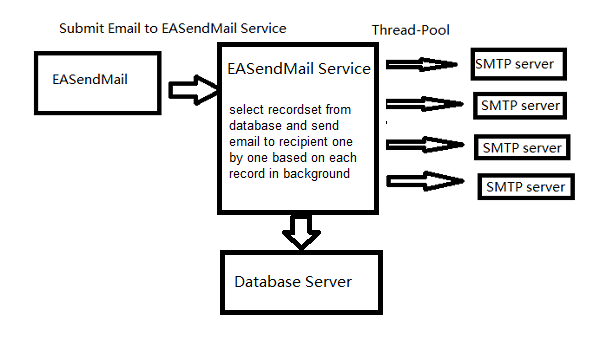
Example
[C#] The following sample demonstrates how to select recipient from database by
EASendMail SMTP Service. To get the full samples of EASendMail, please refer to Samples section.
[C# - Email Queue with Database]

using System;
using System.Collections;
using EASendMail;

public void SendMailToQueueWithDB()
{
    try
    {
        SmtpMail oMail = new SmtpMail("TryIt");
        oMail.From = "test@emailarchitect.net";
        oMail.Subject = "test subject";

        // if you want EASendMail service to send the email after 10 minutes, use the following code.
        // oMail.Date = System.DateTime.Now.AddMinutes(10);

        // Set Database Connection
        oMail.Headers.ReplaceHeader("X-Data-Connection", "Driver={Microsoft Access Driver (*.mdb)};Dbq=c:\\easendmail\\easendmail_demo.mdb;Uid=;Pwd=;");

        // For more connection string
        // MS SQL Server 2000
        // "Driver={SQL Server};Server=localhost;Database=pubs;Uid=sa;Pwd=asdasd;"

        // MS SQL Server 2005
        // "Driver={SQL Server Native Client};Server=localhost;Database=pubs;Uid=sa;Pwd=asdasd;"

        // MS SQL Server 2008
        // "Driver={SQL Server Native Client 10.0};Server=localhost;Database=myDataBase;Uid=myUsername;Pwd=myPassword;"

        // MS SQL Server 2012
        // "Driver={SQL Server Native Client 11.0};Server=localhost;Database=myDataBase;Uid=myUsername;Pwd=myPassword;"

        // MS Access
        // "Driver={Microsoft Access Driver (*.mdb)};Dbq=C:\\mydatabase.mdb;Uid=Admin;Pwd=;"
        // "Driver={Microsoft Access Driver (*.mdb, *.accdb)};Dbq=C:\\mydatabase.accdb;Uid=;Pwd=;"

        // ORACLE
        // "Driver={Microsoft ODBC for Oracle};Server=OracleServer.world;Uid=Username;Pwd=asdasd;"

        // MySQL
        // "DRIVER={MySQL ODBC 3.51 Driver};SERVER=localhost;DATABASE=myDatabase;USER=myUsername;PASSWORD=myPassword;OPTION=3;"
        // "Driver={MySQL ODBC 5.1 Driver};Server=myServerAddress;Database=myDatabase;User=myUsername;Password=myPassword;Option=3;"

        // other connection string
        // please refer to: http://www.connectionstrings.com/

        // To check the database error, please use EASendMail Service Manager -> Journal -> System Error
        // EASendMail uses the following connection to connect to the database, the syntax is same as
        // ADO connection object.

        // EASendMail will select the fields by the following sql statement  before sending email,
        // then pick the recipient address from specified field.
        oMail.Headers.ReplaceHeader("X-Sql-Select", "SELECT id, name, address FROM Recipients");

        // pick "name" field as the recipient name and "address" field as  the recipient address.
        // you can also use {$var_srecord:fieldname} to pick any field
        // in X-Sql-Select statement and put it to subject, bodytext, then EASendMail will replace it automatially.

        oMail.Headers.ReplaceHeader("To", "\"{$var_srecord:name}\" <{$var_srecord:address}>");
        oMail.Headers.ReplaceHeader("X-Rcpt-To", "{$var_srecord:address}");

        // EASendMail service will execute the following sql statement on
        // every email was sent successfully.
        oMail.Headers.ReplaceHeader("X-Sql-OnSentSuccess",
                "INSERT INTO sentlog (server, email) VALUES('{$var_server}', '{$var_rcptaddr}')");

        // EASendMail service will execute the following sql statement on
        // every email was failed to sent.
        oMail.Headers.ReplaceHeader("X-Sql-OnSentError",
            "INSERT INTO errorlog(email, server, errorcode, errordescription) VALUES( '{$var_rcptaddr}', '{$var_server}', '{$var_errcode}', '{$var_errdesc}' )");

        string bodyText = "Hi {$var_srecord:name}, \r\nthis sample demonstrates how to send email in asp.net with EASendMail service.\r\n\r\n";
        bodyText += "To:{$var_srecord:address}\r\n\r\n"; // {$var_srecord:address} will be replaced by EASendMail automatically.
        bodyText += "recipient email address and name variable will be replaced by EASendMail service automatically\r\n\r\n";
        bodyText += "If no server address was specified, the email will be delivered to the recipient's server by the setting in ";
        bodyText += "EASendMail Service.\r\n\r\n";
        bodyText += "Your id in database is {$var_srecord:id}.\r\n\r\n";
        bodyText += "No matter how many recipients there are, EASendMail ";
        bodyText += "service will send the email in background.\r\n\r\n";

        // {$var_srecord:id} {$var_srecord:address} {$var_srecord:name} in
        // body text will be replaced by EASendMail automatically.
        oMail.TextBody = bodyText;

        // Your SMTP server address, if you don't set server,
        // EASendMail service uses the server setting in EASendMail Service Manager.
        SmtpServer oServer = new SmtpServer("smtp.emailarchitect.net");

        // User and password for ESMTP authentication
        oServer.User = "test@emailarchitect.net";
        oServer.Password = "test";

        // Most mordern SMTP servers require SSL/TLS connection now.
        // ConnectTryTLS means if server supports SSL/TLS, SSL/TLS will be used automatically.
        oServer.ConnectType = SmtpConnectType.ConnectTryTLS;

        SmtpClient oSmtp = new SmtpClient();
        oSmtp.SendMailToQueue(oServer, oMail);

        // If you want to use SMTP server setting in EASendMail Service Manager, use
        //oSmtp.SendMailToQueue(null, oMail);

        Console.WriteLine("The message was sent to EASendMail Service successfully!");
    }
    catch (Exception exp)
    {
        Console.WriteLine("Exception: {0}, please make sure you installed EASendMail Service on the server!", exp.Message);
    }
}
Work with Job
With EASendMail 7.1, you can define batch emails as a Job. If you defined a Job, you can manage the Job in EASendMail SMTP Service Manager->Queue Monitor->Jobs. You can also
execute a SQL statement after a Job is completed.
[C# - Email Queue with Database + Job]

using System;
using System.Collections;
using EASendMail;

public void SendMailToQueueWithDBJob()
{
    try
    {
        SmtpMail oMail = new SmtpMail("TryIt");
        oMail.From = "test@emailarchitect.net";
        oMail.Subject = "test subject";

        // if you want EASendMail service to send the email after 10 minutes, use the following code.
        // oMail.Date = System.DateTime.Now.AddMinutes(10);

        // Set Database Connection
        oMail.Headers.ReplaceHeader("X-Data-Connection", "Driver={Microsoft Access Driver (*.mdb)};Dbq=c:\\easendmail\\easendmail_demo.mdb;Uid=;Pwd=;");

        // For more connection string
        // MS SQL Server 2000
        // "Driver={SQL Server};Server=localhost;Database=pubs;Uid=sa;Pwd=asdasd;"

        // MS SQL Server 2005
        // "Driver={SQL Server Native Client};Server=localhost;Database=pubs;Uid=sa;Pwd=asdasd;"

        // MS SQL Server 2008
        // "Driver={SQL Server Native Client 10.0};Server=localhost;Database=myDataBase;Uid=myUsername;Pwd=myPassword;"

        // MS SQL Server 2012
        // "Driver={SQL Server Native Client 11.0};Server=localhost;Database=myDataBase;Uid=myUsername;Pwd=myPassword;"

        // MS Access
        // "Driver={Microsoft Access Driver (*.mdb)};Dbq=C:\\mydatabase.mdb;Uid=Admin;Pwd=;"
        // "Driver={Microsoft Access Driver (*.mdb, *.accdb)};Dbq=C:\\mydatabase.accdb;Uid=;Pwd=;"

        // ORACLE
        // "Driver={Microsoft ODBC for Oracle};Server=OracleServer.world;Uid=Username;Pwd=asdasd;"

        // MySQL
        // "DRIVER={MySQL ODBC 3.51 Driver};SERVER=localhost;DATABASE=myDatabase;USER=myUsername;PASSWORD=myPassword;OPTION=3;"
        // "Driver={MySQL ODBC 5.1 Driver};Server=myServerAddress;Database=myDatabase;User=myUsername;Password=myPassword;Option=3;"

        // other connection string
        // please refer to: http://www.connectionstrings.com/

        // To check the database error, please use EASendMail Service Manager -> Journal -> System Error
        // EASendMail uses the following connection to connect to the database, the syntax is same as
        // ADO connection object.

        // EASendMail will select the fields by the following sql statement  before sending email,
        // then pick the recipient address from specified field.
        oMail.Headers.ReplaceHeader("X-Sql-Select", "SELECT id, name, address FROM Recipients");

        // pick "name" field as the recipient name and "address" field as  the recipient address.
        // you can also use {$var_srecord:fieldname} to pick any field
        // in X-Sql-Select statement and put it to subject, bodytext, then EASendMail will replace it automatially.

        oMail.Headers.ReplaceHeader("To", "\"{$var_srecord:name}\" <{$var_srecord:address}>");
        oMail.Headers.ReplaceHeader("X-Rcpt-To", "{$var_srecord:address}");

        // EASendMail service will execute the following sql statement on
        // every email was sent successfully.
        oMail.Headers.ReplaceHeader("X-Sql-OnSentSuccess",
                "INSERT INTO sentlog (server, email) VALUES('{$var_server}', '{$var_rcptaddr}')");

        // EASendMail service will execute the following sql statement on
        // every email was failed to sent.
        oMail.Headers.ReplaceHeader("X-Sql-OnSentError",
            "INSERT INTO errorlog(email, server, errorcode, errordescription) VALUES( '{$var_rcptaddr}', '{$var_server}', '{$var_errcode}', '{$var_errdesc}' )");

        string bodyText = "Hi {$var_srecord:name}, \r\nthis sample demonstrates how to send email in asp.net with EASendMail service.\r\n\r\n";
        bodyText += "To:{$var_srecord:address}\r\n\r\n"; // {$var_srecord:address} will be replaced by EASendMail automatically.
        bodyText += "recipient email address and name variable will be replaced by EASendMail service automatically\r\n\r\n";
        bodyText += "If no server address was specified, the email will be delivered to the recipient's server by the setting in ";
        bodyText += "EASendMail Service.\r\n\r\n";
        bodyText += "Your id in database is {$var_srecord:id}.\r\n\r\n";
        bodyText += "No matter how many recipients there are, EASendMail ";
        bodyText += "service will send the email in background.\r\n\r\n";

        // {$var_srecord:id} {$var_srecord:address} {$var_srecord:name} in
        // body text will be replaced by EASendMail automatically.
        oMail.TextBody = bodyText;

        // Define a Job, you can monitor the Job in EASendMail SMTP Service Manager -> Queue Monitor -> Jobs
        oMail.Headers.ReplaceHeader("X-EAS-JobID", "MyJob1");

        // After all emails were sent in this job, the following SQL statement will be executed.
        oMail.Headers.ReplaceHeader("X-Sql-OnJobCompleted", "INSERT INTO joblog ( jobid ) VALUES( 'MyJob1')");

        // Your SMTP server address, if you don't set server,
        // EASendMail service uses the server setting in EASendMail Service Manager.
        SmtpServer oServer = new SmtpServer("smtp.emailarchitect.net");

        // User and password for ESMTP authentication
        oServer.User = "test@emailarchitect.net";
        oServer.Password = "test";

        // Most mordern SMTP servers require SSL/TLS connection now.
        // ConnectTryTLS means if server supports SSL/TLS, SSL/TLS will be used automatically.
        oServer.ConnectType = SmtpConnectType.ConnectTryTLS;

        SmtpClient oSmtp = new SmtpClient();
        oSmtp.SendMailToQueue(oServer, oMail);

        // If you want to use SMTP server setting in EASendMail Service Manager, use
        //oSmtp.SendMailToQueue(null, oMail);

        Console.WriteLine("The message was sent to EASendMail Service successfully!");
    }
    catch (Exception exp)
    {
        Console.WriteLine("Exception: {0}, please make sure you installed EASendMail Service on the server!", exp.Message);
    }
}
Database Error Journal
You can check the database and SQL statement error in Journal->System Error
Database Server Driver
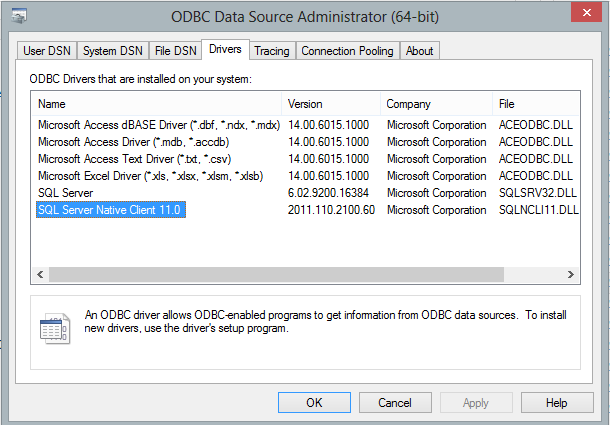
In X-Data-Connection header, you should specify a database driver to connect database. You can open
"Control Panel" -> "Administrative Tools" - > "ODBC Data Sources" - "Drivers" to check current installed database drivers.
Common SQL Driver Download
If SQL Server is installed on a remote server, and you don't have SQL driver installed on local machine, then you need to download and install corresponding driver on local machine.
MS Access Database Driver Download
Microsoft Access Database Engine 2010 Redistributable
Work with digital signed/encrypted email
Because EASendMail service will replace the {$var_xxxx} variable in mail body, if
your email is digital signed, this feature will cause the digital signature not
to be verified. With EASendMail 4.6 and EASendMail service 2.1, if your email is
digital signed or encrypted, EASendMail service will not replace the {$var_xxx}
variable in mail body. And with EASendMail 4.6 and EASendMail service 2.1, there
is a new feature named "late sign".
Example
[Visual Basic, C#] The following example demonstrates how to send email with EASendMail
SMTP Component. To get the full samples of EASendMail, please refer to Samples section.
[VB - Email Queue with Digital Signature]

Imports EASendMail

Public Sub SendMailToQueue(sender As String,
    recipient As String,
    subject As String)

    Try
        Dim oMail As SmtpMail = New SmtpMail("TryIt")
        oMail.From = New MailAddress(sender)
        ' Separate multiple addresses by comma(,)
        oMail.To = New AddressCollection(recipient)

        ' To avoid too many email addresses appear in To header, using the
        ' following code only display the current recipient
        oMail.Headers.ReplaceHeader("To", """{$var_rcptname}"" <{$var_rcptaddr}>")
        oMail.Headers.ReplaceHeader("X-Rcpt-To",
                        oMail.To.ToEncodedString(HeaderEncodingType.EncodingAuto, "utf-8"))

        oMail.Subject = subject
        oMail.TextBody = "Dear {$var_rcptname}, your email address is {$var_rcptaddr}"

        ' If you want EASendMail service to send the email after 10 minutes, use the following code.
        ' you can also cancel the scheduled task in EASendMail Service Manager->Queue Monitor->Scheduled Tasks
        ' oMail.Date = System.DateTime.Now.AddMinutes(10)

        ' add a header named "x-signer-pfx" and the value format is [pfx fullpath]/[pfx password],
        ' then EASendMail service will replace {$var_xxx} variable at first,
        ' then sign the mail by the specified certificate
        oMail.ReplaceHeader("X-Signer-PFX", "c:\cert\sender.pfx/pfxpassword")

        ' Your SMTP server address, if you don't set server,
        ' EASendMail service uses the server setting in EASendMail Service Manager.
        Dim oServer As New SmtpServer("smtp.emailarchitect.net")

        ' User and password for ESMTP authentication
        oServer.User = "test@emailarchitect.net"
        oServer.Password = "testpassword"

        ' If server supports SSL/TLS connection, SSL/TLS is used automatically.
        oServer.ConnectType = SmtpConnectType.ConnectTryTLS

        Dim oSmtp As SmtpClient = New SmtpClient()
        oSmtp.SendMailToQueue(oServer, oMail)

        ' If you want to use SMTP server setting in EASendMail Service Manager, use
        ' oSmtp.SendMailToQueue(Nothing, oMail)
        Console.WriteLine("The message was sent to EASendMail Service successfully!")

    Catch exp As Exception
        Console.WriteLine("Exception: Common: {0}, please make sure you installed EASendMail Service on the server!", exp.Message)
    End Try

End Sub


[C# - Email Queue with Digital Signature]

using System;
using System.Collections;
using EASendMail;

public void SendMailToQueue(string sender,
        string recipient,
        string subject)
{
    try
    {
        SmtpMail oMail = new SmtpMail("TryIt");
        oMail.From = sender;
        // Separate multiple addresses by comma(,)
        oMail.To = recipient;

        // To avoid too many email addresses appear in To header,
        // use following code only display the current recipient
        oMail.Headers.ReplaceHeader("To", "\"{$var_rcptname}\" <{$var_rcptaddr}>");
        oMail.Headers.ReplaceHeader("X-Rcpt-To",
            oMail.To.ToEncodedString(HeaderEncodingType.EncodingAuto, "utf-8"));

        oMail.Subject = subject;
        oMail.TextBody = "Dear {$var_rcptname}, your email address is {$var_rcptaddr}";

        // If you want EASendMail service to send the email after 10 minutes, use the following code.
        // you can also cancel the scheduled task in EASendMail Service Manager->Queue Monitor->Scheduled Tasks
        // oMail.Date = DateTime.Now.AddMinutes(10);

        // add a header named "x-signer-pfx" and the value format is [pfx fullpath]/[pfx password],
        // then EASendMail service will replace {$var_xxx} variable at first,
        // then sign the mail by the specified certificate
        oMail.ReplaceHeader("X-Signer-PFX", "c:\\cert\\sender.pfx/pfxpassword");

        // Your SMTP server address, if you don't set server,
        // EASendMail service uses the server setting in EASendMail Service Manager.
        SmtpServer oServer = new SmtpServer("smtp.emailarchitect.net");

        // User and password for ESMTP authentication
        oServer.User = "test@emailarchitect.net";
        oServer.Password = "test";

        // Most mordern SMTP servers require SSL/TLS connection now.
        // ConnectTryTLS means if server supports SSL/TLS, SSL/TLS will be used automatically.
        oServer.ConnectType = SmtpConnectType.ConnectTryTLS;

        SmtpClient oSmtp = new SmtpClient();
        oSmtp.SendMailToQueue(oServer, oMail);

        // If you want to use SMTP server setting in EASendMail Service Manager, use
        // oSmtp.SendMailToQueue(null, oMail);
        Console.WriteLine("The message was sent to EASendMail Service successfully!");
    }
    catch (Exception exp)
    {
        Console.WriteLine("Exception: {0}, please make sure you installed EASendMail Service on the server!", exp.Message);
    }
}
Bounced Email and SMTP Transport Error
When you send email with EASendMail Service, there are two situations:
- Send email with specified SMTP server
If you send email with specified SMTP server, you should catch the error between EASendMail Service and your SMTP server by
X-Sql-OnSentError or X-File-OnSentError; you also need to catch the error between your SMTP server and recipient SMTP server
by non-delivery report, please have a look at the following flow chart:
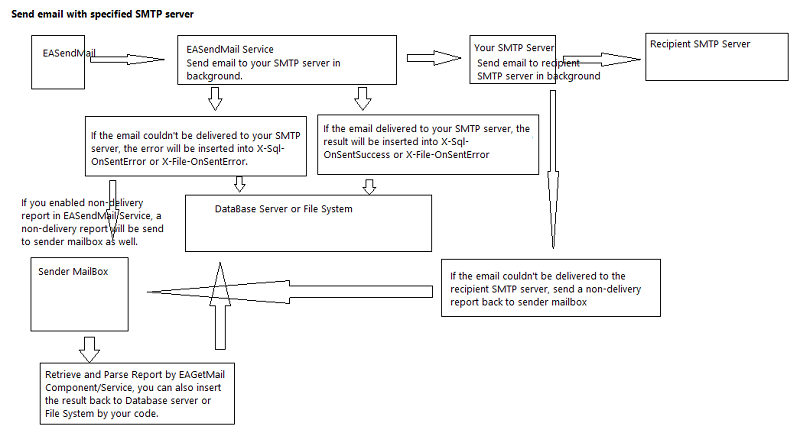
To parse non-delivery report, please have a look at Process Bounced Email (Non-Delivery Report) and Email Tracking.
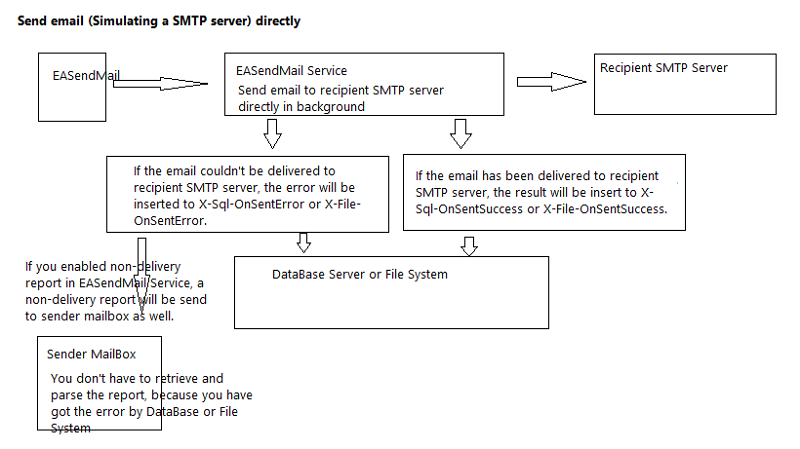
- Send email directly (simulating a SMTP server)
If you send email directly, you just need to catch the error between EASendMail Service and your SMTP server by
X-Sql-OnSentError or X-File-OnSentError. You don't have to enable Non-delivery Report in EASendMail Service. So sending email directly is recommended, but you should have a static internet IP
address on your server, otherwise most emails will be rejected by recipient SMTP server due to anti-spam policy.
Please have a look at the following flow chart:
To send email directly (simulating a SMTP server), please also have a look at Bulk Email Sender Guidelines.
In EASendMail Service, it also provides some advanced features just like: Traffic Control, Connection Limit, Delivery Retry.
To learn more about EASendMail Service, please refer to EASendMail
Service.
Send Email to Remote Queue
If your application is running on the same server of EASendMail Service, then please use
SendMailToQueue or
SendMailToQueueEx method;
If your appliation want to send email to EASendMail Service on remote server, you should use this method.
Before you use PostToRemoteQueue method, you should deploy EASendMail Service Agent on the remote server.
- Open IIS Manager on your remote server.
- Choose default website, right click -> Add Application ->
- Input eaagent as application alias and set physical path to "EASendMail Service installation path\EAAgent" (.NET 2.0 or later version) or EAAgent40 (.NET 4.0).
- Now you have installed EASendMail Service Agent successfully.
- You can set user access permission for this application in IIS Manager -> Authentication (optional, if you set user permission, you should assign valid user/password in PostToRemoteQueue method).
Online Tutorials
Send Email in MS SQL Server - Tutorial
Send Email with Queue in ASP.NET + C#
Send Bulk Emails with Database Queue in ASP.NET + C#
Send Email with Queue in ASP.NET + VB
Send Bulk Emails with Database Queue in ASP.NET + VB
Send Email with Queue in ASP + VBScript
Send Bulk Emails with Database Queue in ASP + VBScript
Online Examples
C# -
Email Queue with EASendMail Service
Visual
Basic - Email Queue with EASendMail Service
C++/CLI
- Email Queue with EASendMail Service
See Also
Using EASendMail SMTP .NET Component
User Authentication and SSL Connection
Enable TLS 1.2 on Windows XP/2003/2008/7/2008 R2
Using Gmail SMTP OAUTH
Using Gmail/GSuite Service Account + SMTP OAUTH Authentication
Using Office365 EWS OAUTH
Using Office365 EWS OAUTH in Background Service
Using Hotmail SMTP OAUTH
From, ReplyTo, Sender and Return-Path
Digital Signature and E-mail Encryption
DomainKeys and DKIM Signature
Send E-mail Directly (Simulating SMTP server)
Bulk Email Sender Guidelines
Process Bounced Email (Non-Delivery Report) and Email Tracking
EASendMail .NET Namespace References
EASendMail SMTP Component Samples