Digital signature prevents email content is faked or changed in transport level. Encrypting email protects email content from exposure to inappropriate recipients. Both digital signature and email encrypting depend on digital certificate.
Digital signature is always signed by sender certificate. The certificate used to sign email content MUST have the public/private key pair. First of all, the user MUST get a digital certificate for personal email protection from third-party certificate authorities such as www.verisign.com. After the certificate is installed on the machine, it can be viewed by "Control Pannel" -> "Internet Options" -> "Content" -> "Certificates" -> "Personal". When you view the certificate, please note there is a line "You have a private key that corresponds to this certificate" in the certificate view, that means you are able to use this certificate to sign email content. If this line doesn't appear, that means you are unable to sign the email content by this certificate. To sign email content with EASendMail, the certificate with private key is required to be imported to SmtpMail.From.Certificate properly.
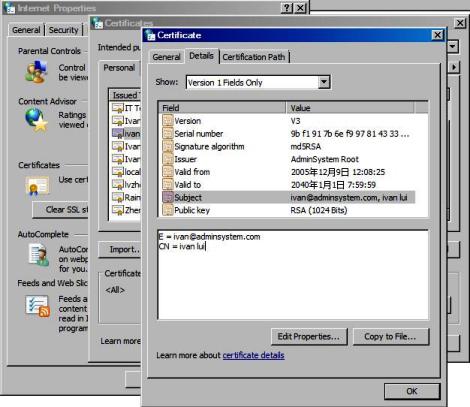
[Visual Basic, C#] The following example demonstrates how to load certificate to sign email content with EASendMail SMTP Component. To get the full samples of EASendMail, please refer to Samples section.
[VB - Sign Email with Certificate]

Imports EASendMail
Imports System.Security.Cryptography.X509Certificates

Private Function _findCertificate(storeName As String, emailAddress As String) As X509Certificate2

    Dim cert As X509Certificate2 = Nothing
    Dim store As New X509Store(storeName, StoreLocation.CurrentUser)

    store.Open(OpenFlags.ReadOnly)
    Dim certfiicates As X509Certificate2Collection = store.Certificates.Find(X509FindType.FindBySubjectName, emailAddress, True)
    If certfiicates.Count > 0 Then
        cert = certfiicates(0)
    End If

    store.Close()

    _findCertificate = cert
End Function

Try
    Dim oMail As SmtpMail = New SmtpMail("TryIt")
    oMail.From = New MailAddress("test@emailarchitect.net")

    Dim signerCertificate As X509Certificate2 = _findCertificate("My", oMail.From.Address)
    If signerCertificate Is Nothing Then
        Throw New Exception("No signer certificate found for " + oMail.From.Address + "!")
    End If

    oMail.From.Certificate2 = signerCertificate
    ' You can also load the signer certificate from a pfx file.
    '
    ' Dim pfxPath As String = "D:\TestCerts\signer.pfx"
    ' Dim signerCertFromPfx As X509Certificate2 = New X509Certificate2(pfxPath,
    '        "nosecret",
    ' X509KeyStorageFlags.Exportable Or X509KeyStorageFlags.UserKeySet)
    ' oMail.From.Certificate2 = signerCertFromPfx

    ' If you use it in web application,
    ' please use  X509KeyStorageFlags.Exportable Or X509KeyStorageFlags.MachineKeySet

    ' If you use it in .NET core application
    ' please use X509KeyStorageFlags.Exportable Or X509KeyStorageFlags.EphemeralKeySet

Catch exp As Exception
    Console.WriteLine("No sign certificate found for sender email: {0}", exp.Message)
End Try

[C# - Sign Email with Certificate]

using System.Security.Cryptography.X509Certificates;
using EASendMail;

X509Certificate2 _findCertificate(string storeName, string emailAddress)
{
    X509Certificate2 cert = null;

    X509Store store = new X509Store(storeName, StoreLocation.CurrentUser);
    store.Open(OpenFlags.ReadOnly);

    X509Certificate2Collection certfiicates = store.Certificates.Find(X509FindType.FindBySubjectName, emailAddress, true);
    if (certfiicates.Count > 0)
    {
        cert = certfiicates[0];
    }

    store.Close();

    return cert;
}

try
{
    SmtpMail oMail = new SmtpMail("TryIt");
    oMail.From = "test@adminsystem.com";

    X509Certificate2 signerCertificate = _findCertificate("My", oMail.From.Address);
    if (signerCertificate == null)
        throw new Exception("No signer certificate found for " + oMail.From.Address + "!");

    oMail.From.Certificate2 = signerCertificate;

    // You can also load the signer certificate from a pfx file.
    /* string pfxPath = "D:\\TestCerts\\signer.pfx";
    X509Certificate2 signerCertFromPfx = new X509Certificate2(pfxPath,
        "nosecret",
        X509KeyStorageFlags.Exportable | X509KeyStorageFlags.UserKeySet);

    oMail.From.Certificate2 = signerCertFromPfx;
    */
    // If you use it in web application,
    // please use  X509KeyStorageFlags.Exportable | X509KeyStorageFlags.MachineKeySet

    // If you use it in .NET core application
    // please use X509KeyStorageFlags.Exportable | X509KeyStorageFlags.EphemeralKeySet
}
catch (Exception exp)
{
    Console.WriteLine("No sign certificate found {0}", exp.Message);
}
You can use SignatureHashAlgorithm property to set signature algorithm to MD5, SHA1, SHA256, SHA384 or SHA512.
RSASSA-PSS Signature
If you need to use RSASSA-PSS signature scheme, you need a special version of EASendMail, please have a look at
this topic:
RSASSA-PSS + RSA-OAEP Encryption with SHA256
Encrypting email doesn't require sender certificate but the certificate with public key for every recipient. For example, from@adminsystem.com sends an email to rcpt@adminsystem.com with digital signature. The digital signature contains the public key certificate for from@adminsystem.com, then rcpt@adminsystem.com can send an encrypted email with this certificate back to from@adminsystem.com. Only from@adminsystem can read this email, because this email MUST be decrypted by private key of from@adminsystem.com. Therefore, you MUST receive an digital signed email from other people (Most email clients such as outlook, outlook express will add the certificate to the Other People Storage automatically once an digital signed email is received) before you can send encrypted email to this people. To encrypt email with EASendMail, the certificate for recipient should be loaded to MailAddress.Certificate property.
By default, Personal digital certificate is stored at Certificate.CertificateStoreLocation.CERT_SYSTEM_STORE_CURRENT_USER "my". Encryption digital certificates are stored at Certificate.CertificateStoreLocation.CERT_SYSTEM_STORE_CURRENT_USER "Address Book". If you want to search certificate in Windows Active Directory, please use Certificate.CertificateStoreLocation.CERT_STORE_PROV_LDAP_STORE and input LDAP query statement in storeName parameter.
[Visual Basic, C#] The following example demonstrates how to load certificate to encrypt email with EASendMail SMTP Component. To get the full samples of EASendMail, please refer to Samples section.
[VB - Encrypt Email]

Imports EASendMail
Imports System.Security.Cryptography.X509Certificates

Private Function _findCertificate(storeName As String, emailAddress As String) As X509Certificate2

    Dim cert As X509Certificate2 = Nothing
    Dim store As New X509Store(storeName, StoreLocation.CurrentUser)

    store.Open(OpenFlags.ReadOnly)
    Dim certfiicates As X509Certificate2Collection = store.Certificates.Find(X509FindType.FindBySubjectName, emailAddress, True)
    If certfiicates.Count > 0 Then
        cert = certfiicates(0)
    End If

    store.Close()

    _findCertificate = cert
End Function

Dim oMail As SmtpMail = New SmtpMail("TryIt")
oMail.From = New MailAddress("test@adminsystem.com")
oMail.To = New AddressCollection("encrypt1@adminsystem.com, encrypt2@adminsystem.com")

For i As Integer = 0 To oMail.[To].Count - 1
    Dim oAddress As MailAddress = oMail.[To](i)

    Dim encryptCert As X509Certificate2 = _findCertificate("AddressBook", oAddress.Address)
    If encryptCert Is Nothing Then
        encryptCert = _findCertificate("My", oAddress.Address)
    End If

    If encryptCert Is Nothing Then
        Throw New Exception("No encryption certificate found for " + oAddress.Address + "!")
    End If

    oAddress.Certificate2 = encryptCert

    ' You can also load the encryptor certificate from a cer file Like this

    ' Dim cerPath As String = "D:\TestCerts\encryptor.cer"
    ' Dim encryptCertFromFile = New X509Certificate2(cerPath)
    ' oAddress.Certificate2 = encryptCertFromFile
Next


[C# - Encrypt Email]

using System.Security.Cryptography.X509Certificates;
using EASendMail;

X509Certificate2 _findCertificate(string storeName, string emailAddress)
{
    X509Certificate2 cert = null;

    X509Store store = new X509Store(storeName, StoreLocation.CurrentUser);
    store.Open(OpenFlags.ReadOnly);

    X509Certificate2Collection certfiicates = store.Certificates.Find(X509FindType.FindBySubjectName, emailAddress, true);
    if (certfiicates.Count > 0)
    {
        cert = certfiicates[0];
    }

    store.Close();

    return cert;
}

SmtpMail oMail = new SmtpMail("TryIt");
oMail.From = "test@adminsystem.com";
oMail.To = "encrypt1@adminsystem.com, encrypt2@adminsystem.com";

for (int i = 0; i < oMail.To.Count; i++)
{
    MailAddress oAddress = oMail.To[i];

    X509Certificate2 encryptCert = _findCertificate("AddressBook", oAddress.Address);
    if (encryptCert == null)
        encryptCert = _findCertificate("My", oAddress.Address);

    if (encryptCert == null)
        throw new Exception("No encryption certificate found for " + oAddress.Address + "!");

    oAddress.Certificate2 = encryptCert;

    // You can also load the encryptor certificate from a cer file like this
    /*
    string cerPath = "D:\\TestCerts\\encryptor.cer";
    X509Certificate2 encryptCertFromFile = new X509Certificate2(cerPath);
    oAddress.Certificate2 = encryptCertFromFile;
    */
}
You can use EncryptionAlgorithm property to set encryption algorithm to RC2, RC4, 3DES, AES128 (RSAES-OAEP), AES192 (RSAES-OAEP) or AES256 (RSAES-OAEP).
RSA-OAEP Encryption with SHA256
If you need to use RSA-OAEP encryption with sha256 scheme, please have a look at this topic:
RSASSA-PSS + RSA-OAEP Encryption with SHA256
*.pfx certificate contains the public/private key and *.cer only contains the public key, so *.pfx is able to sign and encrypt email, but *.cer is used to encrypted email only. *.pfx and *.cert can be exported by "Control Pannel" -> "Internet Options" -> "Content" -> "Certificates". If importing private key is chosen, the *.pfx will be generated, otherwise *.cer will be generated.
Since ASP.NET application is running under ASPNET user, it is not a normal user in Operating System. You should use Load method to load the certificate file directly instead of finding certificate in the user certificate storage. When *.pfx is loaded, X509KeyStorageFlags.MachineKeySet or X509KeyStorageFlags.EphemeralKeySet (.NET Core) should be used instead of X509KeyStorageFlags.UserKeySet.
[Visual Basic]

Dim pfxPath As String = "D:\TestCerts\signer.pfx"
Dim signerCertFromPfx As X509Certificate2 = New X509Certificate2(pfxPath,
        "nosecret",
    X509KeyStorageFlags.Exportable Or X509KeyStorageFlags.MachineKeySet)
oMail.From.Certificate2 = signerCertFromPfx

[C#]
string pfxPath = "D:\\TestCerts\\signer.pfx";
X509Certificate2 signerCertFromPfx = new X509Certificate2(pfxPath,
        "nosecret",
        X509KeyStorageFlags.Exportable | X509KeyStorageFlags.MachineKeySet);

oMail.From.Certificate2 = signerCertFromPfx;
Please rerfer to Work with EASendMail Service (Email Queuing)
Online Examples
Sign Email - Visual
Basic
Encrypt Email - Visual
Basic
Sign Email - C#
Encrypt Email - C#
Sign Email - C++/CLI
Encrypt Email -
C++/CLI
See Also
Using EASendMail SMTP .NET Component
User Authentication and SSL Connection
Enable TLS 1.2 on Windows XP/2003/2008/7/2008 R2
Using Gmail SMTP OAUTH
Using Gmail/GSuite Service Account + SMTP OAUTH Authentication
Using Office365 EWS OAUTH
Using Office365 EWS OAUTH in Background Service
Using Hotmail SMTP OAUTH
From, ReplyTo, Sender and Return-Path
DomainKeys and DKIM Signature
Send E-mail Directly (Simulating SMTP server)
Work with EASendMail Service (Email Queuing)
Bulk Email Sender Guidelines
Process Bounced Email (Non-Delivery Report) and Email Tracking
EASendMail .NET Namespace References
EASendMail SMTP Component Samples