DomainKeys is a technology proposal that can bring black and white back to this decision process by giving email providers a mechanism for verifying both the domain of each email sender and the integrity of the messages sent. But DomainKey is deprecated by DKIM now,
DKIM is a similar technology as Domainkeys. To learn more detail about DKIM, please refer to RFC4871.
Now, EASendMail provides a way to add DKIM signature to your email.
How DomainKeys/DKIM works?
DomainKeys/DKIM combines of a public key cryptography and a DNS to provide credible domain-level authentication for email.
When an email claims to originate from a certain domain, DomainKeys/DKIM provides a mechanism by which the recipient system can credibly determine that the email did in fact originate from a person or system authorized to send email for that domain.
Therefore, to sign an email with DomainKeys/DKIM, you MUST have a private key/pulic key pair for email signing.
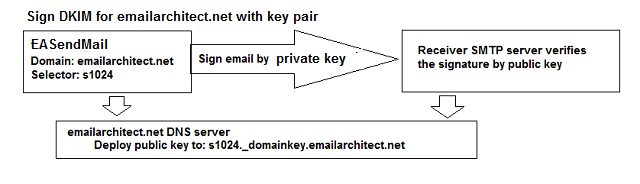
Make DKIM key-pair configuration json file
You can use this online tool
to generate the configuration json file
https://www.emailarchitect.net/live/dkimconfig.aspx
Now we can use the configuration file to sign the DKIM signature like this:
[C# - Sign DKIM with json configuration file]
DkimConfig dkimConfig = new DkimConfig();
dkimConfig.LoadFromFile("d:\\myfolder\\mydomain.json");

SmtpMail mail = new SmtpMail("TryIt");
mail.DkimSignerConfig = dkimConfig;


[VB - Sign DKIM with json configuration file]
Dim dkimConfig As New DkimConfig()
dkimConfig.LoadFromFile("d:\myfolder\mydomain.json")

Dim mail As New SmtpMail("TryIt")
mail.DkimSignerConfig = dkimConfig;
EASendMail will generate the DKIM signature automatically.
Deploy Public Key
We also need to deploy the Public Key to your domain DNS server. You can use the following code gets the public key of the configuration file:
[C# - Get Public Key]
DkimConfig dkimConfig = new DkimConfig();
dkimConfig.LoadFromFile("d:\\myfolder\\mydomain.json");

Console.WriteLine(string.Format("v=DKIM1; k=rsa; p={0}", dkimConfig.PublicKey));


[VB - Get Public Key]
Dim dkimConfig As New DkimConfig()
dkimConfig.LoadFromFile("d:\myfolder\mydomain.json")

Console.WriteLine(string.Format("v=DKIM1; k=rsa; p={0}", dkimConfig.PublicKey))
Once you get the public key, you should set a TXT record in your domain DNS server. For example: your selector is s1024, your domain is adminsystem.com, then you should create a TXT record for s1024._domainkey.adminsystem.com and set the following content in the record.
s1024._domainkey.adminsystem.com       text =

        "v=DKIM1; k=rsa; p=MIGfMA0GCSqGSIb3DQEBAQUAA4GNADCBiQKBgQCmKsozkVJqlNAGsvn1LoJPmoZl8nizv6pIuOV5P
44E8C6Vbl4DW8p0Bb5Zg8EgpYRgsEiJX5pYDj67YzzXNIhViziHwQ3jbUedxNkw/6GV4ZX8aRJKJnwnYqGWIQ8tQESwQtywfduQ2
TjsS1aG3XeOgxxEeuhBNaZHQWVThSinuQIDAQAB"
To learn more detail about Public Key deployment, please refer to https://www.emailarchitect.net/domainkeys/doc/default.aspx?ct=object_deploy
Test DomainKeys and DKIM
Please go to http://www.appmaildev.com/en/dkim to test your DKIM and DomainKeys signature.
Online Example
Send Email with DomainKeys and DKIM - C#
Send Email with DomainKeys and DKIM - VB
Send Email with DomainKeys and DKIM - C++/CLI
See Also
Using EASendMail SMTP .NET Component
User Authentication and SSL Connection
Enable TLS 1.2 on Windows XP/2003/2008/7/2008 R2
Using Gmail SMTP OAUTH
Using Gmail/GSuite Service Account + SMTP OAUTH Authentication
Using Office365 EWS OAUTH
Using Office365 EWS OAUTH in Background Service
Using Hotmail SMTP OAUTH
From, ReplyTo, Sender and Return-Path
Digital Signature and E-mail Encryption
Send E-mail Directly (Simulating SMTP server)
Work with EASendMail Service (Email Queuing)
Bulk Email Sender Guidelines
Process Bounced Email (Non-Delivery Report) and Email Tracking
EASendMail .NET Namespace References
EASendMail SMTP Component Samples