
Managed C++/CLI - Send email using MX DNS lookup - smart host
The following Managed C++/CLI example codes demonstrate how to send email without specified SMTP server.
How does it work?
In general, we send email via specified SMTP server. How does the specified SMTP server know what address this email should be sent to? The answer is… it queries MX record of recipient’s domain via DNS lookup. It then forwards this email to the SMTP server queried from DNS server. If recipient’s server doesn’t work fine, sender’s SMTP server will send a failure-delivery report to the sender telling it failed to send out the email.
How does EASendMail SMTP component work with “Send email directly”? Firstly, it queries MX record for recipient address from DNS, then sends email to recipient’s email server directly. In short, if no SMTP server is specified in the code, EASendMail will send email to recipient directly. Since querying DNS server consumes CPU time and networking resource, the performance of “Send email directly” is lower than sending email with specified SMTP server. Moreover, nowadays more and more SMTP servers block email sent from dynamic IP address, so we don’t recommend you to use “Direct Send Email” except you have a static IP address or you encounter problem with your ISP SMTP server.
Every recipient may have different SMTP server, if there are multiple recipients in one message and you want to send email directly, you should send the email to the recipients one by one.
To implement this feature, you just need to put nothing to SMTP server address.
Sections:
Installation
Before you can use the following codes, please download EASendMail SMTP Component and install it on your machine at first. Full sample proejcts are included in this installer.
Install from NuGet
You can also install the run-time assembly by NuGet. Run the following command in the NuGet Package Manager Console:
Install-Package EASendMail
Note
If you install it by NuGet, no sample projects are installed, only .NET assembly is installed. And you also need to get a trial license code from here instead of using “TryIt”.
Add reference
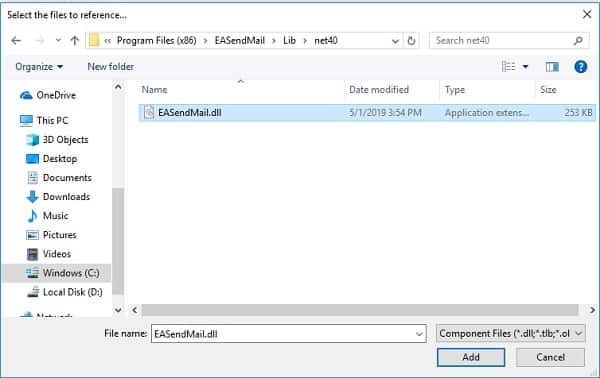
To use EASendMail SMTP Component in your project, the first step is Add reference
of EASendMail to your project. Please create or open your project with Visual Studio,
then go to menu -> Project -> Add Reference -> .NET -> Browse..., and select
Installation Path\Lib\net[version]\EASendMail.dll from your disk, click Open -> OK, the reference of EASendMail
will be added to your project, and you can start to use it to send email
in your project.
.NET assembly
Because EASendMail has separate builds for .Net Framework, please refer to the following table and choose the correct dll.
Separate builds of run-time assembly for .NET Framework 2.0, 3.5, 4.0, 4.5, 4.6.1, 4.7.2, 4.8.1, .NET 6.0, .NET 7.0, .NET 8.0, .NET Standard 2.0 and .NET Compact Framework 2.0, 3.5.
| File | .NET Framework Version |
| Lib\[net20|40|45|461|472|481]\EASendMail.dll |
Built with .NET Framework 2.0, 4.0, 4.5, 4.6.1, 4.7.2, 4.8.1
It requires .NET Framework 2.0, 3.5 or later version. |
| Lib\[net6.0|7.0|8.0]\EASendMail.dll |
Built with .NET 6.0, .NET 7.0, .NET 8.0
It requires .NET 6.0 or later version. |
| Lib\netstandard2.0\EASendMail.dll |
Built with .NET Standard 2.0
It requires .NET Standard 2.0 or later version. |
| Lib\[net20-cf|net35-cf]\EASendMail.dll |
Built with .NET Compact Framework 2.0, 3.5
It requires .NET Compact Framework 2.0, 3.5 or later version. |
C++/CLI - Send email using MX DNS lookup - smart host - example
The following example codes demonstrate sending email message using MX DNS lookup.
In order to run it correctly, please change SMTP server, user, password, sender, recipient value to yours.
Note
To get full sample projects, please download and install EASendMail on your machine.
#include "stdafx.h"

using namespace System;
using namespace EASendMail;

int main(array<System::String ^> ^args)
{
    try
    {
        SmtpMail ^oMail = gcnew SmtpMail("TryIt");

        // Set sender email address, please change it to yours
        oMail->From = "test@emailarchitect.net";

        // Set recipient email address, please change it to yours
        oMail->To = gcnew AddressCollection("support@emailarchitect.net");

        // Set email subject
        oMail->Subject = "test email from Managed C++ project";

        // Set email body
        oMail->TextBody = "this is a test email sent from Managed C++ project, do not reply";

        // Do not set SMTP server address
        SmtpServer ^oServer = gcnew SmtpServer("");

        Console::WriteLine("start to send email from Managed C++...");

        SmtpClient ^oSmtp = gcnew SmtpClient();
        oSmtp->SendMail(oServer, oMail);

        Console::WriteLine("email was sent successfully!");
    }
    catch (Exception ^ep)
    {
        Console::WriteLine("failed to send email with the following error:");
        Console::WriteLine(ep->Message);
    }

    return 0;
}
With above code, if you get error like “5xx IP address rejected”, that means your IP address is blocked by the recipient’s SMTP server. You have to specify a SMTP server with user authentication to relay your email.
Important notice
If your machine doesn’t have a static IP address, then I don’t suggest that you send email directly.
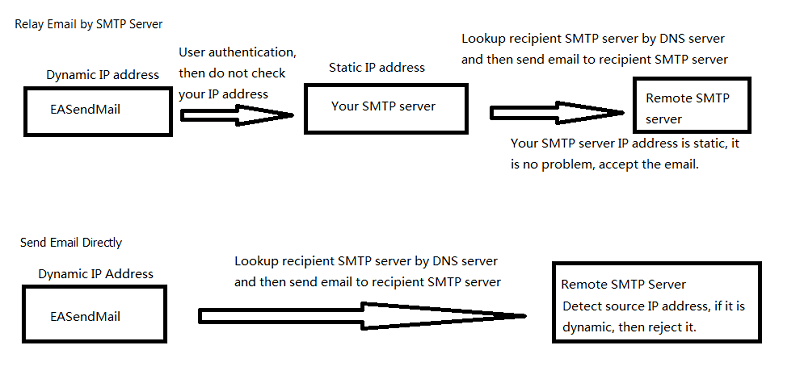
- If your IP address is dynamic, most SMTP servers reject your connection due to anti-spam policy. We always suggest that your send email by a SMTP server that has a static internet IP address. When you relay email by your SMTP server, because you do user authentication at first before you send email to your SMTP server, so your SMTP server doesn’t reject your connection even your IP address is dynamic. Finally your SMTP server sends email to remote SMTP server. Because your SMTP server has a static IP, the email won’t be rejected by remote SMTP server.
- If you encountered a temporal SMTP error (4xx), you should retry to send email later. That means you have to write the code to handle retry. So if you have a static IP address, I suggest that you use EASendMail Component + EASendMail Service, EASendMail service can send email directly or send email with specified SMTP server in background and handle delivery retry automatically.
To learn more detail about EASendMail Serivce, please have a look at Work with EASendMail Service (Email Queuing).
Appendix
- Send Email in Managed C++/CLI - Tutorial
- EASendMail SMTP Component SDK
- Process Bounced Email (Non-Delivery Report) and Email Tracking
- Bulk Email Sender Guidelines
- Work with Email Queue
Comments
If you have any comments or questions about above example codes, please click here to add your comments.