
Delphi - Send email using SMTP server
The following delphi example codes demonstrate how to compose and send email with text/plain format using SMTP server.
Sections:
Installation
EASendMail is a SMTP component which supports all operations of SMTP/ESMTP protocols (RFC 821, RFC 822, RFC 2554). Before you can use the following example codes, you should download the EASendMail Installer and install it on your machine at first.
Add reference
To use EASendMail SMTP ActiveX Object in your Delphi project, the first step is “Add Unit file of EASendMail to your project”.
Please go to C:\Program Files\EASendMail\Include\delphi or
C:\Program Files (x86)\EASendMail\Include\delphi folder, find EASendMailObjLib_TLB.pas,
and then copy this file to your project folder.
unit Unit1;

interface
// include EASendMailObjLib_TLB unit to your Delphi Project
uses
Windows, Messages, SysUtils, Variants, Classes, Graphics, Controls, Forms,
Dialogs, EASendMailObjLib_TLB, StdCtrls;
You can also create “EASendMailObjLib_TLB.pas” manually like this:
Delphi 7
Please choose menu ->
Project->Import Type Libraryand selectEASendMailObj ActiveX Object, clickCreate Unit, the reference of EASendMail ActiveX Object will be added to your project.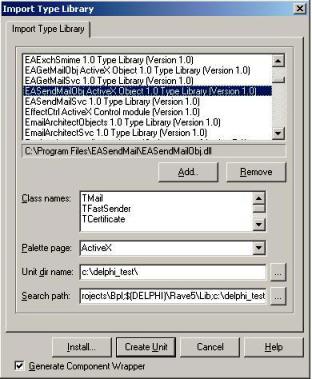
Delphi XE
If you use Delphi XE to import the Type library, Please choose menu ->
Component->Import Component->Import Type Library-> and selectEASendMailObj ActiveX Object-> haveGenerate Component Wrapperchecked -> Create Unit.
Then you can start to use it in your Delphi Project.
Delphi - Send email using SMTP server - example
The following example codes demonstrate how to send email with simple text/plain body format.
In order to run it correctly, please change SMTP server, user, password, sender, recipient value to yours.
Note
To get full sample projects, please download and install EASendMail on your machine.
Unit Unit1;

Interface

Uses
    Windows, Messages, SysUtils, Variants, Classes, Graphics, Controls, Forms,
    Dialogs, StdCtrls, EASendMailObjLib_TLB; // add EASendMail Unit

Type
    TForm1 = Class(TForm)
        Button1: TButton;
        Procedure Button1Click(Sender: TObject);
    private
        { Private declarations }
    public
        { Public declarations }
    End;

const
  ConnectNormal = 0;
  ConnectSSLAuto = 1;
  ConnectSTARTTLS = 2;
  ConnectDirectSSL = 3;
  ConnectTryTLS = 4;

Var
    Form1: TForm1;

Implementation

{$R *.dfm}

Procedure TForm1.Button1Click(Sender: TObject);
Var
    oSmtp : TMail;
Begin
    oSmtp := TMail.Create(Application);
    oSmtp.LicenseCode := 'TryIt';

    // Set your sender email address
    oSmtp.FromAddr := 'test@emailarchitect.net';

    // Add recipient email address
    oSmtp.AddRecipientEx('support@emailarchitect.net', 0);

    // Set email subject
    oSmtp.Subject := 'simple email from Delphi project';

    // Set email body
    oSmtp.BodyText := 'this is a test email sent from Delphi project, do not reply';

    // Your SMTP server address
    oSmtp.ServerAddr := 'smtp.emailarchitect.net';

    // User and password for ESMTP authentication, if your server doesn't require
    // user authentication, please remove the following codes
    oSmtp.UserName := 'test@emailarchitect.net';
    oSmtp.Password := 'testpassword';

    // ConnectTryTLS means if server supports SSL/TLS connection, SSL/TLS is used automatically
    oSmtp.ConnectType := ConnectTryTLS;

    // If your server uses 587 port
    // oSmtp.ServerPort := 587;

    // If your server uses 25/587/465 port with SSL/TLS
    // oSmtp.ConnectType := ConnectSSLAuto;
    // oSmtp.ServerPort := 587; // 25 or 587 or 465

    ShowMessage('start to send email ...');

    If oSmtp.SendMail() = 0 Then
        ShowMessage('email was sent successfully!')
    Else
        ShowMessage('failed to send email with the following error: '
        + oSmtp.GetLastErrDescription());

End;

End.
TLS 1.2 protocol
TLS is the successor of SSL, more and more SMTP servers require TLS 1.2 encryption now.
If your operating system is Windows XP/Vista/Windows 7/Windows 2003/2008/2008 R2/2012/2012 R2, you need to
enable TLS 1.2 protocol in your operating system like this:
Enable TLS 1.2 on Windows XP/Vista/7/10/Windows 2008/2008 R2/2012
32bit/x64 ActiveX DLL
Seperate builds of run-time dll for 32 and x64 platform
| File | Platform |
| Installation Path\Lib\native\x86\EASendMailObj.dll | 32 bit |
| Installation Path\Lib\native\x64\EASendMailObj.dll | 64 bit |
Distribution
Standard EXE
For VB6, C++, Delphi or other standard exe application, you can distribute EASendMailObj.dll with your application to target machine without COM-registration and installer. To learn more detail, please have a look at Registration-free COM with Manifest File.
Script
For ASP, VBScript, VBA, MS SQL Stored Procedure, you need to install EASendMail on target machine by EASendMail installer, both 32bit/x64 DLL are installed and registered.
Appendix
- Send Email in Delphi - Tutorial
- EASendMail SMTP Component SDK
- Process Bounced Email (Non-Delivery Report) and Email Tracking
- Bulk Email Sender Guidelines
- Work with Email Queue
Comments
If you have any comments or questions about above example codes, please click here to add your comments.